How to Connect Shopify to Google Shopping : Our Step-by-Step Guide to Drive Sales

Ashleigh Milord


Ashleigh Milord
There’s a point in many Shopify store journeys where everything feels like it should be working.
The store is live. Products are ready. The experience has been carefully built, sometimes over months. And yet, the traffic doesn’t quite reflect the effort behind it.
That gap can be frustrating, especially when everything on your end feels complete.
But more often than not, the issue isn’t the product or the store, it’s reach.
That’s where Google Shopping comes in. Not as a fix-all, but as a way to place your products in front of people who are already looking for something like what you offer.
If you’re figuring out how to connect Shopify to Google Shopping, the goal isn’t just technical setup. It’s making sure your products are presented clearly, consistently, and in a way that earns their place in those search results.
Let’s walk through it with that in mind.
Google Shopping operates differently from most marketing channels.
There, people aren’t just scrolling, they’re searching with intent. They are comparing options, narrowing choices, and looking for something specific. And in that moment, relevance matters more than reach.
A well-executed Shopify Google Shopping integration doesn’t just increase visibility. It positions your products directly within that decision-making process.
And that’s where the details start to matter more than you might expect.
These elements work together to tell Google (and your audience) what you’re offering, and whether it’s worth showing.
When they’re aligned, your products don’t just appear, they feel like a natural fit.
Most challenges we see here aren’t about effort. They’re about small gaps between systems that don’t always line up as neatly as they should.
Sometimes it starts with the setup itself. You’re moving between Google Merchant Center, Google Ads, and Shopify’s Google channel, each with its own logic, its own way of handling data, and its own expectations. It’s not necessarily difficult, but it’s rarely seamless on the first try.
Other times, the friction shows up in the product feed.
A missing identifier, an image that doesn’t meet guidelines, pricing that hasn’t quite synced yet. On their own, these seem minor. But in combination, they can quietly affect how your products are approved, displayed, and ultimately, how they perform.
And then there are moments where everything looks like it should be working.
From the outside, nothing appears broken, but the results still feel underwhelming.
When that happens, it’s often less about access to the channel, and more about what’s being presented once people arrive. If your product pages, images, or overall store experience don’t support the intent behind that traffic, performance will naturally plateau.
That’s usually where the conversation shifts from setup to experience.
Because connecting Shopify to Google Shopping is only part of the equation. The other half lives on your storefront: how your products are framed, how easy they are to understand, and how clearly they guide someone toward making a decision.
If you’re looking to improve your Shopify store experience, we’ve explored how design and UX play a key role in driving better performance in a dedicated article.
When the setup is done with intention, the difference shows up quickly.
It’s not just about being visible. It’s about being consistent, relevant, and reliable across every touchpoint.
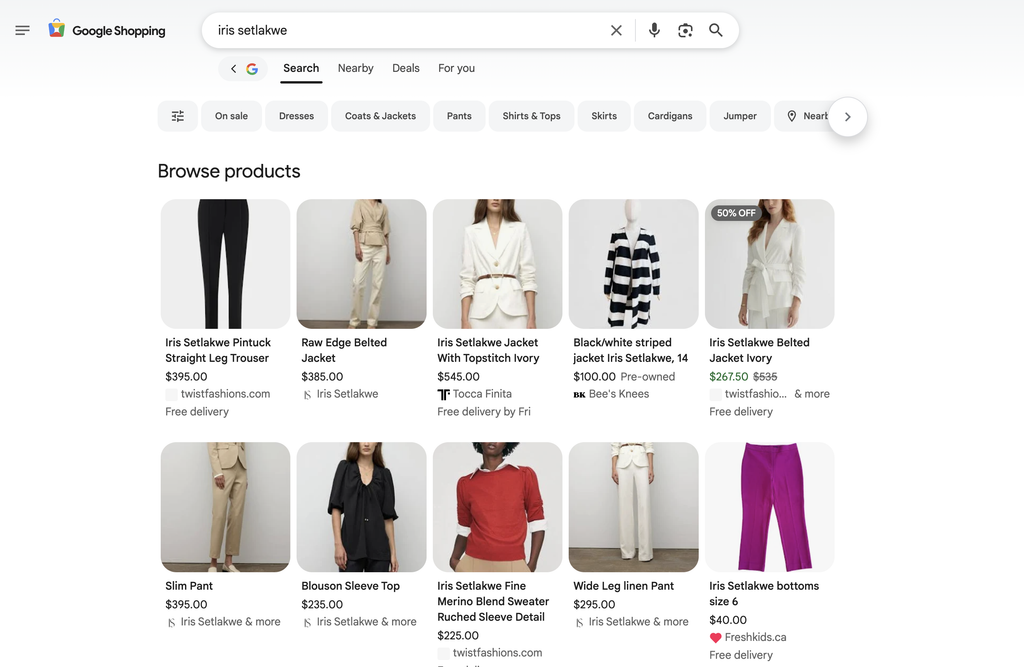
With brands like Iris Setlakwe, for example, the focus wasn’t simply on how to connect Shopify to Google Shopping. It was on how to make that connection meaningful.
That meant prioritising:
The result wasn’t more traffic, it was better-aligned traffic, which matters so much more when it comes to driving actual sales.
Case in point, for Iris, it lead to a steady performance, sustainable growth, and a setup that could support demand without losing control of the brand.
That balance, between performance and brand integrity, is often what separates a basic setup from a strong one.
This is where we move from concept to execution.
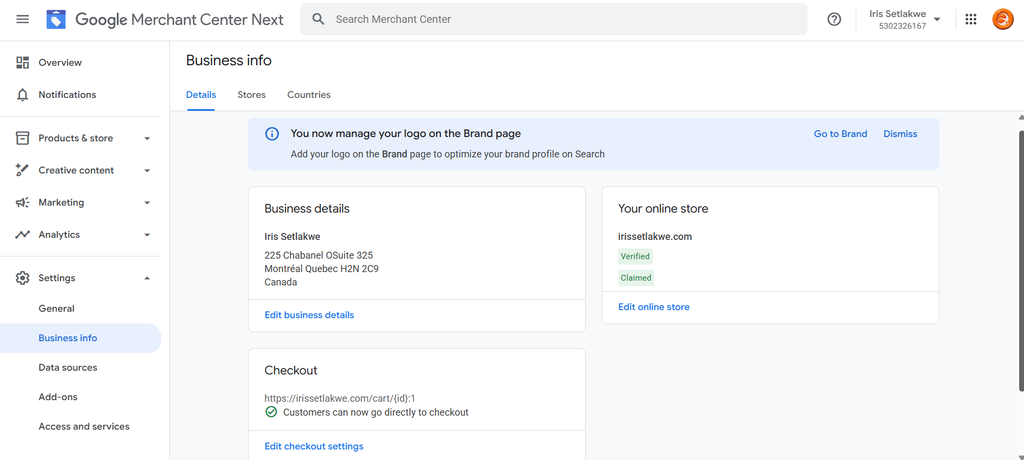
Your Merchant Center account is the foundation of everything that follows.
To connect Shopify to Google Merchant Center, make sure you:
Inconsistencies here are one of the most common reasons for Google Merchant Center Shopify errors later on.
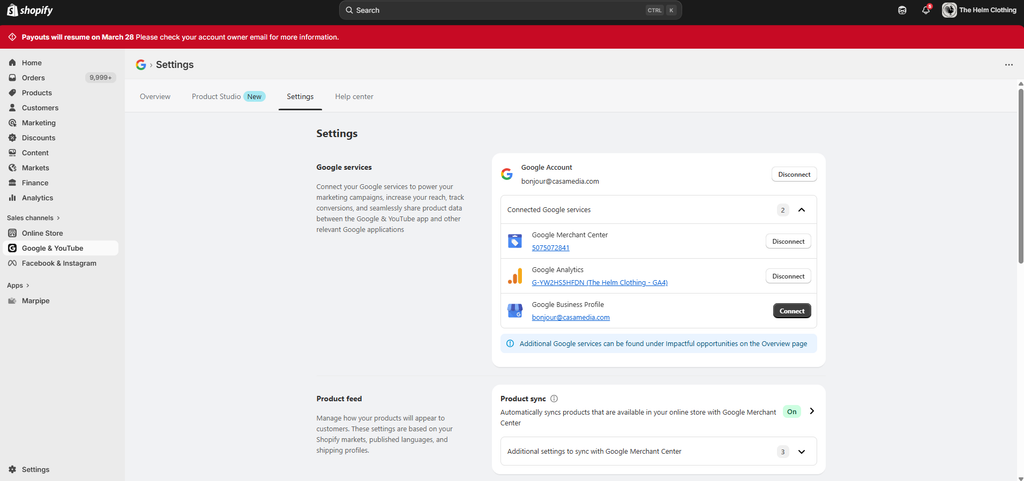
Once the foundation is in place, you can bridge Shopify and Google.
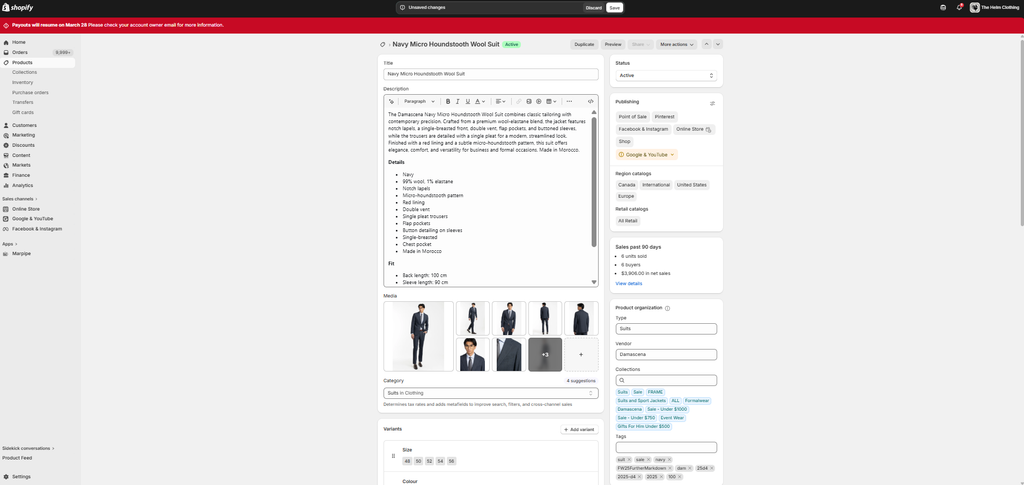
Inside Shopify:
At this point, you’re able to:
It’s a simple step on the surface, but it unlocks the rest of the system.
Your product feed is one of the most important elements in the entire setup.
It tells Google what your products are, how they should be categorised, and when they should appear.
A few key areas to focus on:
A well-structured Shopify product feed for Google Shopping improves both approval rates and relevance—two things that directly impact performance.
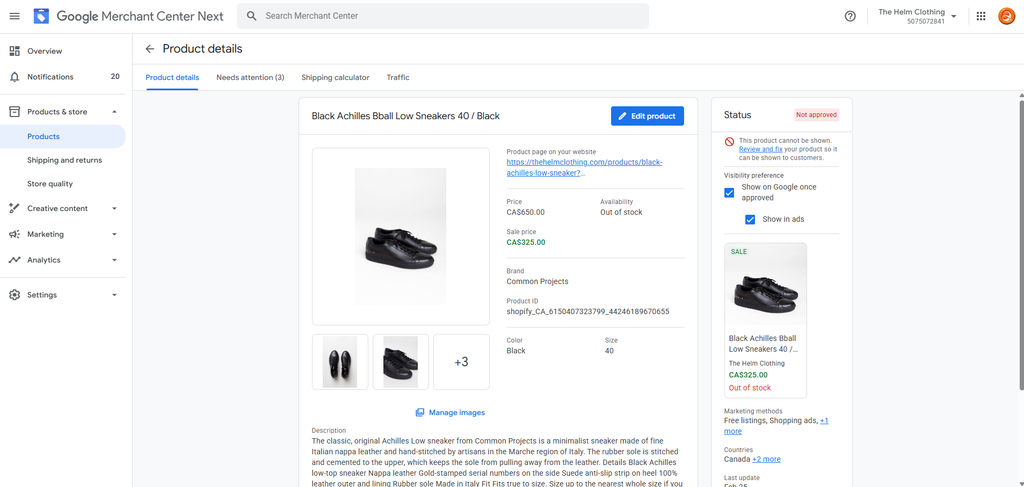
Even with a solid setup, issues can appear.
Some of the most common include:
These usually come down to feed quality or missing data. The sooner they’re addressed, the easier it is to keep momentum.
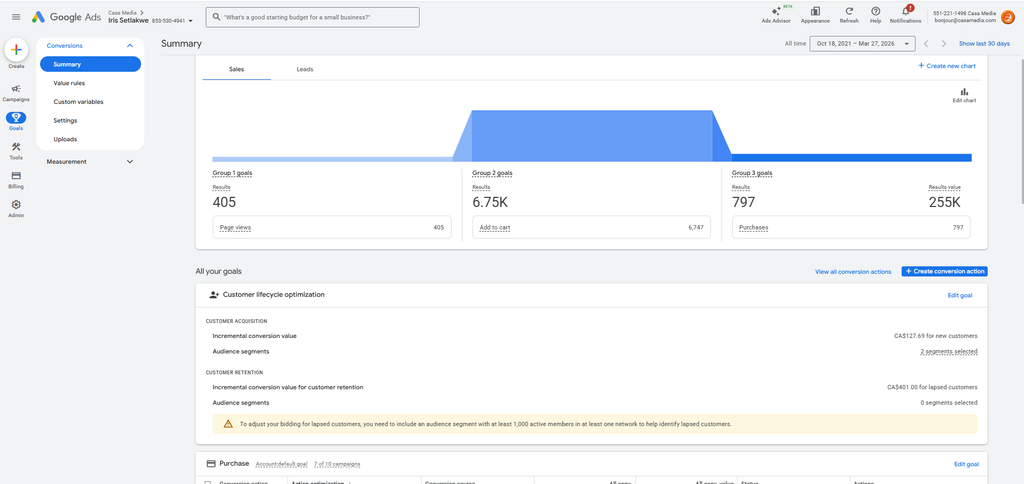
Once your products are live, the next step is to make them work for you.
To run effective Google Shopping ads on Shopify:
This is where visibility starts translating into actual revenue.
If you’re wondering how to sell products on Google Shopping with Shopify in a more intentional way, the focus shifts slightly.
It’s less about launching and more about refining.
At this stage, consider:
Structure becomes more important than scale here. A well-organised system will outperform a larger, less focused one.
Connecting Shopify to Google Shopping isn’t just a technical step.
It’s the beginning of a system where:
In that sense, this isn’t just about traffic, it’s about being considered and ultimately chosen.
If your setup is in place but not performing the way you expected, or if you’d rather make sure it’s built properly from the start, this is something we can help with.
At Casa Media, we work with brands to turn their Shopify Google Shopping integration into a channel that supports real, sustainable growth. Get in touch if you’d like help setting this up or making it work the way it should.
You can connect Shopify to Google Shopping by setting up a Google Merchant Center account, installing the Shopify Google channel, and syncing your product feed.
This is often due to product feed issues, missing identifiers, or errors within Google Merchant Center.
Approval typically takes between 1–3 days, although delays can occur if product data is incomplete or inconsistent.
Start by reviewing your product feed, ensuring all required fields are complete, and confirming that your Shopify Google channel is properly connected.
Once your products are synced, link Shopify to Google Ads, set up conversion tracking, and structure your campaigns based on performance and intent.